Flushing / clearing DNS in Mac OSX

Below is how to clear / flush the DNS cache in Mac OSX.

  • Open the terminal (Finder -> Applications -> Utilities -> Terminal)
  • In case your operating system is ‘Leopard’ (10.5.*) or ‘Snow Leopard’ (10.6.*), issue the following command:

dscacheutil -flushcache

  • Otherwise, for older operating systems, issue the following command:

lookupd -flushcache

This is the equivalent of the following Windows command: ipconfig /flushdns

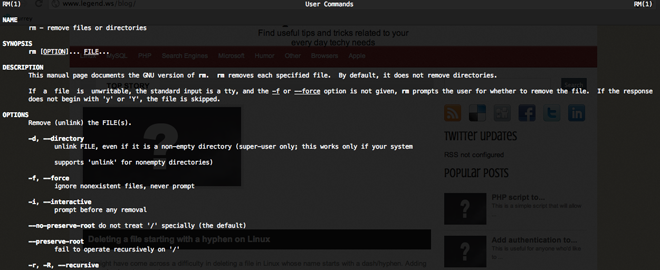
Deleting a file, the name of which starts with a hyphen (Linux)

You might have come across a difficulty in deleting a file in Linux whose name starts with a dash/hyphen.

Adding an escape character (e.g. rm -rf \-filename) or quoting the file name (e.g. rm -rf “-filename”) will not do the job.

The solution is simple: explicitly provide the full or relative path to the file. e.g.:

rm -rf /path/to/-file

or the following – if for instance your current working directory is the one containing the file in question

rm -rf ./-file

Mac users: turn colors into negative

Are you a mac user? try the following keyboard combination:

cmd + alt (option) + ctrl + 8

Colors are instantly inverted, giving the entire screen a negative-photography like feel.

Hit the same combination to restore the colors.

Linux: finding files modified or accessed at a certain time

The ‘find’ utility is quite handy when used with the proper parameters. Below is a few ways to find files/folders based on the time they were accessed or modified.

Example 1:

find /path/to/folder -type f -name “*.txt” -mtime -5

This will find ‘files’ (-type f) within the folder /path/to/folder (or one of its sub directories), whose name ends with ‘.txt’, and which were modified (mtime) less than 5 days ago

Example 2:

find /path/to/folder -type d -name “stat*” -mtime +10

This would find ‘directories’ (-type d) within the folder /path/to/folder (or one of its subdirectories), whose name starts with ‘stat’, and which were modified more than 10 days ago

Example 3:

find . -iname “*.pdf” -mtime +2 -mtime -7

This would help you find files or folders in the ‘current directory’ (.), whose name ends with ‘.pdf’ regardeless of the case of that suffix (e.g. example.PDf would be matched), which were modified more than 2 days and less than 7 days ago (i.e. between 3 to 6 days ago).

Example 4:

find / -type f -atime -5 -size +100k

This example makes use of atime, i.e. time of access (as opposed to mtime, which is the time the file was modified). The above command would help you find files in your entire system (/ being the system root, unless your shell is jailed), which were accessed less than 5 days ago, and which are at least 100 kbytes in size.
PS: if you do not specify the ‘b’, ‘k’, ‘m’, etc., the default would be blocks of 512 bytes. For instance, using +100 instead of +100k, means you’re looking for files sized at least 100*512=51200 bytes (50 kbytes).

More examples to be added…

Facebook’s new photo viewer

Facebook recently introduced a new way of browsing photos and albums. The new photo viewer uses the lightbox technique whereby the page is dimmed and a box is overlaid with a larger version of the selected image.

Some of the improvements it brings are the ability to stay on the page without having to go back in your browser’s history (you simply hit the close ‘x’ button and you’re back to where you were), faster photo flipping/browsing and the ability to download a high res version of the image (if available).

For those who hate this lightbox preview, you may switch to the old fashioned way by simply opening the picture in a new tab (hold ctrl key + click) or a new window (hold shift key + click) instead of simply clicking on the picture. You may then continue browsing in the new tab/window the same way you were used to.

Forcing links that open in a ‘new window’ to open in a ‘new tab’

Do you want to force links that open in a new window to open in a new tab instead? The answer is pretty simple.

Firefox

  • Type the following in the url bar: about:config
  • Edit the following variables:
    • browser.link.open_external -> 3
    • browser.link.open_newwindow -> 3
    • browser.link.open_newwindow.restriction -> 0
  • If any of those variables is not yet defined, simply right click and select ‘new->integer’, enter the variable name then its integer value.

IE8

Simply:

  • Go to: tools -> internet options
  • Then make sure you select ‘always open pop-ups in a new tab‘ under ‘when a pop-up is encountered

That’s it!

Enabling telnet in windows vista

Some of you may be missing the good old command-line telnet client. The thing is that vista has this client disabled by default. The good news is that you can easily install/enable it. To do so, follow these steps:

  1. Go to Control Panel
  2. Click on ‘Programs’
  3. Under ‘Programs and Features’, click on ‘Turn windows features on or off’
  4. Wait a bit for the list to be compiled
  5. Tick ‘Telnet client‘ and hit ‘OK’ then wait for it to be installed

You may now open a command prompt and use telnet hostname port

Good luck

Konami Code

The ‘Konami code’ fad is back!

For those of you who don’t know, Konami code (a.k.a Konami Command) is a cheat code that was used in several games back in the day.

It has been introduced not long ago on several websites. Upon entering this cheat code, some ‘secret’ is revealed or a page is unlocked.

The sequence is: Up, Up, Down, Down, Left, Right, Left, Right, B, A

Some of the famous websites that make use of it are: digg.com, facebook.com
For instance, hitting the above sequence on any story page on digg would change the way comments are displayed, and you’ll be able to view them in a tree/nested structure.
facebook would simply display some joyfull circles/colors (hit any key or press the mouse button after entering the konami code)

Traffic forwarding on linux using IPTABLES

IPTables allows you to easily setup rules for packet filtering/forwarding.

So, to keep it short and simple: assume you’d like to forward any traffic coming to your machine (192.168.0.1) on port 80 to machine2 (192.168.0.2) on port 8080 then:

- Enable port forwarding:

echo 1 > /proc/sys/net/ipv4/ip_forward

- Now add the rules:

iptables -t nat -A PREROUTING -p tcp -d 192.168.0.1 –dport 80 -j DNAT –to 192.168.0.2:8080

iptables -t nat -A POSTROUTING -d 192.168.0.2 -j MASQUERADE

The -p tcp flag specifies that the protocol is TCP (as opposed to UDP, ICMP for example).

The -d 192.168.0.1 flag specifies that the packets was destined to IP 192.168.0.1

The –dport 80 means that the packet had port 80 as destination

-j is the target of the rule being enforced, NAT (network address translation). In more advanced rules, one can specify a predefined iptables chain of rules.

–to will specify to where this packet should be forwarded, and on which port

As for the second rule, it says that outgoing packets to the second machine should be masqueraded. In other terms, the user trying to access the original machine on port 80 will not have a feel that his request was forwarded. The packet will show up as if it came from the masquerading host, while in practice, the request was forwarded to machine2, and the reply came back from that same machine.

On a side note, make sure to add these iptables rules to a file, give it an execution permission (chmod +x /path/to/file), and add it to /etc/rc.local so that it is executed on every system boot. Otherwise, the above rules will be fliushed every time your system is restarted.

Google’s source:life

One of the neatest recent additions to Google search is the LIFE photo archive.

Basically, google images is now indexing a large photo archive owned by the famous Life magazine. Many of these images were also never published before. Talk about a jump back into some of the finest moment in history. Some of these photos date back to around the 1750s.

To search this archive for a specific keyword, simply append the following to your search term(s):  source:life

Try some of the following searches for instance:
BluesTitanicGold rush
You may also browse through the decades-categorized items on the official landing page

Simply, amazing!

←Older